

The Braze integration is available on the Enterprise plan.
Configuration
On the Braze API Keys page under Rest API Keys, create and copy a new workspace API key withusers.track permissions. Under Identification, copy your iOS and Android app identifiers.
Then, on the Radar Integrations page under Braze, set Enabled to Yes and paste your API key and app identifiers. Note that you can set separate API keys and app identifiers for the Test and Live environments. Finally, if your account is not on https://rest.iad-01.braze.com, select the appropriate API Endpoint.
Whenever events are generated, Radar will send custom events and user attributes to Braze. Events and user attributes from iOS devices will be sent using your iOS app identifiers, and events and user attributes from Android devices will be sent using your Android app identifiers.
By default, Radar userId maps to Braze external_id for logged in users. However, you can track logged out users or specify custom mappings by setting Radar metadata.brazeAlias or metadata.brazeExternalId. If you set metadata.brazeAlias, you must also add a matching alias in Braze with label radarAlias.
Verify integration data delivery
To test that the integration is configured correctly and can deliver data, use the Simulator to generate events. Click View on an event row and scroll down to the Logs section on the details page to verify delivery. Perform a similar process via a test app build with Radar location tracking enabled by spoofing location or moving into the relevant boundary.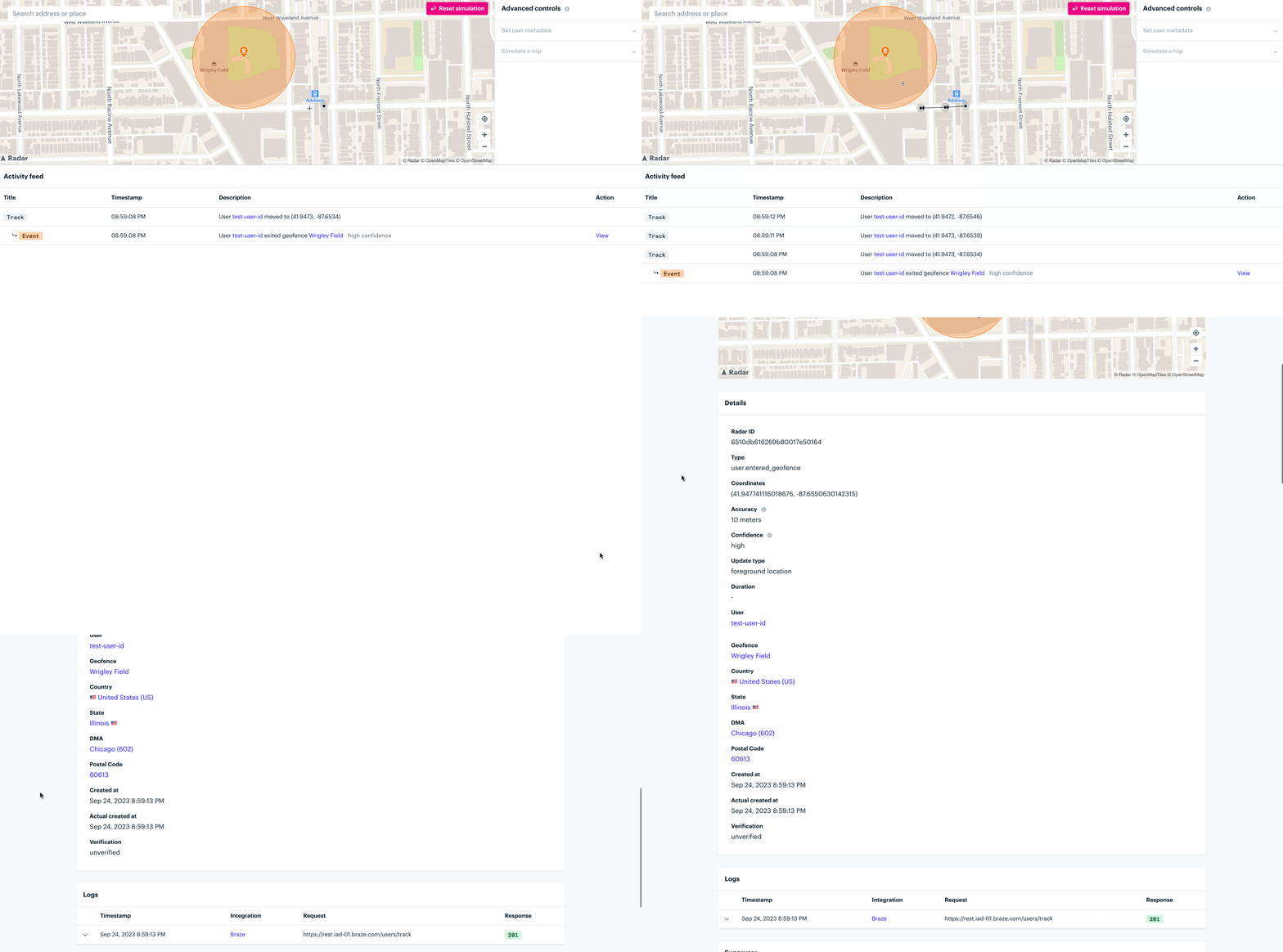
Example use cases
Send a personalized push notification when a user arrives at a store
- Create Geofences in Radar with the geofence tag set to
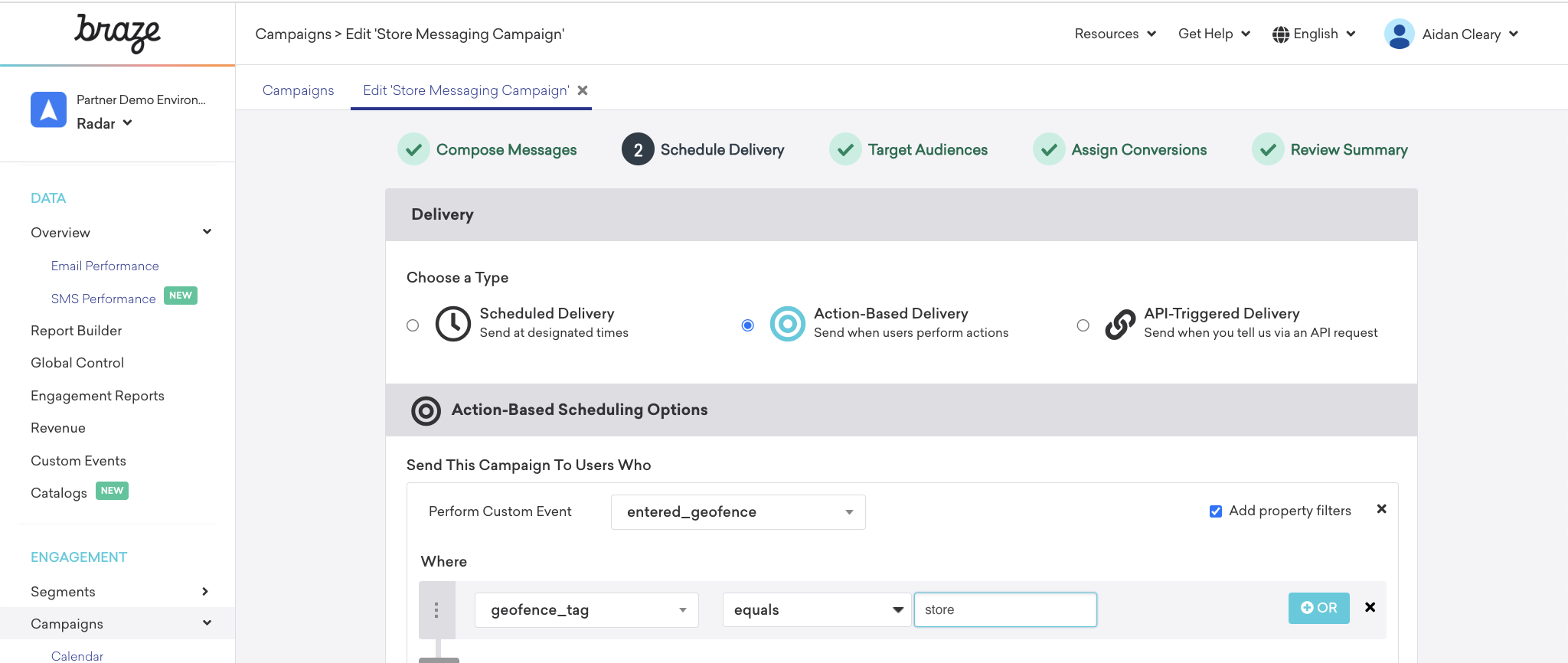
store. The geofence tag will be used to trigger messages for the subset of geofence entries where this tag is present. - Set up a Braze campaign triggered from the Radar geofence entry event, the
entered_geofencecustom event in Braze, and add property filtering wheregeofence_tagisstore. These same events can be used as part of a Braze Canvas and the event properties can be used in message personalization with Liquid.
Message all users nearby a store
- Create Geofences in Radar to represent nearby store boundaries with geofence tag set to
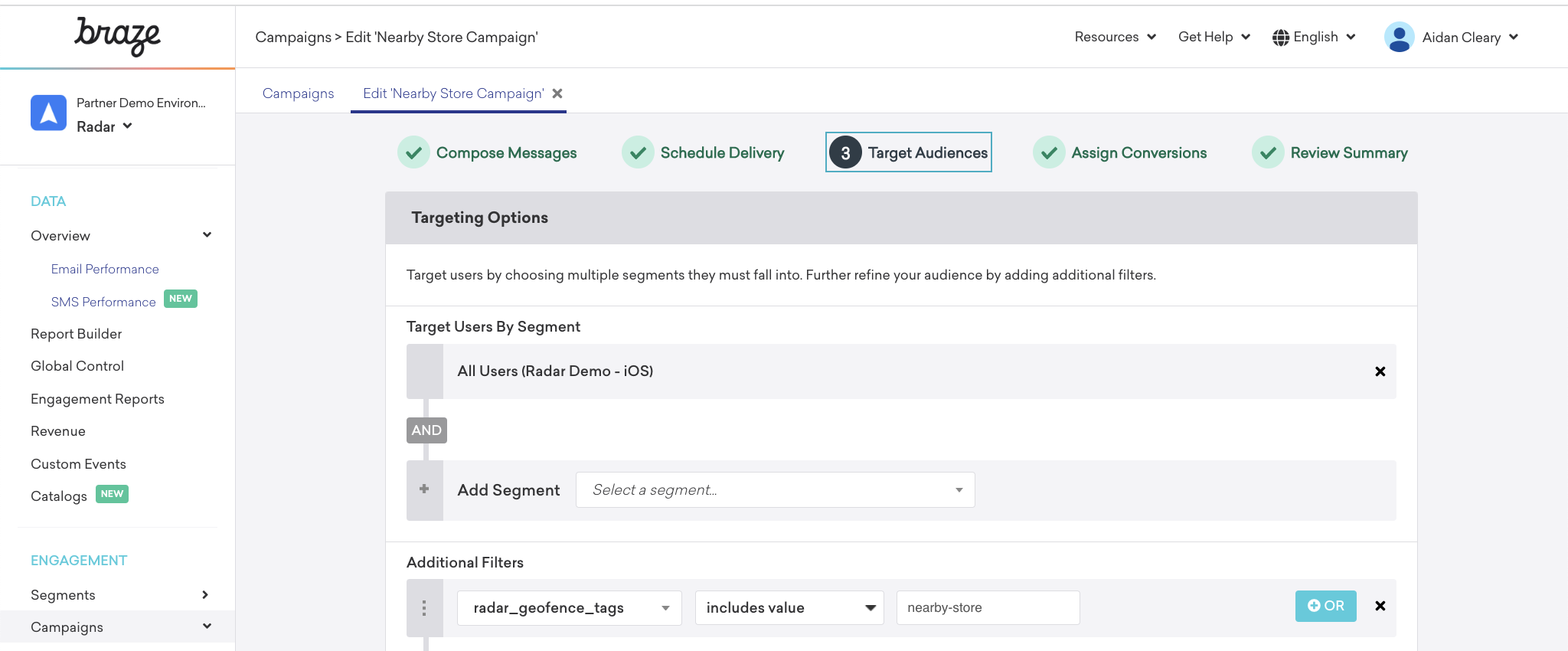
nearby-store. The geofence tag will be used to target messages for the subset of geofences where this tag is present. - Set up a Braze campaign targeted with the
radar_geofence_tagsuser attribute that Radar sends. This will be an array of all geofences the user is currently in, so set the attribute to include the value ofnearby-store. Additional attribute filtering can be performed for more complex targeting, including how recently the location was updated via theradar_updated_atuser attribute.
In-app messaging
To trigger in-app messaging from the user state detected on app open, custom events need to deliver through Braze’s SDK rather than via Radar’s server to server integration with Braze. To support this, implement custom logic in the SDK leveraging Radar’s location update listener, on iOS or Android, to send foreground detections to Braze. The example code below assumes you are calling Radar.trackOnce() on application launch. See the iOS and Android tracking references if needed.Connected content
Radar APIs can be used in Braze connected content. See Braze’s documentation for a connected content example. Use the API explorer in the dashboard to test relevant APIs.User mapping
Note that Radar uses the special string"(null)" to represent null user attribute values.
Event mapping
entered_geofence
If Regions is enabled, Radar will also send the following attributes:
exited_geofence
If Regions is enabled, Radar will also send the following attributes:
dwelled_in_geofence
If Regions is enabled, Radar will also send the following attributes:
entered_place
If Regions is enabled, Radar will also send the following attributes:
exited_place
If Regions is enabled, Radar will also send the following attributes: